

Mapping
If you are new to Generic Extractor, learn about mapping in our tutorial first. Use the Parameter Map to help you navigate among various configuration options.
Mapping allows you to modify a response conversion process in which Generic Extractor receives JSON responses, merges them, and converts them to CSV files, which are then imported to Keboola.
Manually define mapping if you wish to do the following:
- Set up a primary key to simplify relations between result tables and speed up the extraction,
- Avoid extraction of unnecessary properties which make result tables cluttered,
- Split a single response into multiple result tables,
- Override the automatic conversion for any other reason.
The automatic conversion between JSON and CSV (Storage Tables) is defined by the following rules (see an example):
- If the value of a JSON field is a scalar, it is saved as
the value of the column with the name of the field. - If the value of a JSON field is an object, each of the object property values will be added as a value of a column with an auto-generated name.
- If the value of a JSON field is an array, a new table
will be created and linked by the
JSON_parentIdcolumn.
Mapping configuration allows you to manually modify or override this behavior for a
dataType
defined in a job. The following is a mapping configuration example:
"mappings": { "users": { "address.country": { "type": "column", "mapping": { "destination": "country" } } }}Configuration
Section titled “Configuration”The mappings configuration is a deeply nested object. The first level of keys are dataType
values used in the job configurations. The
second level of keys are the names of the properties found (or expected) in the response.
Then, the value is an object with the following properties:
type(optional, string) --- Mapping type, eithercolumn,tableoruser. The default value iscolumn.mapping(required, object) --- Mapping configuration; depends on the mapping type.
The following configuration shows a sample mapping configuration for dataType users and column id:
"mappings": { "users": { "id": { "type": "column", "mapping": { "destination": "user_id" } } }}User Interface
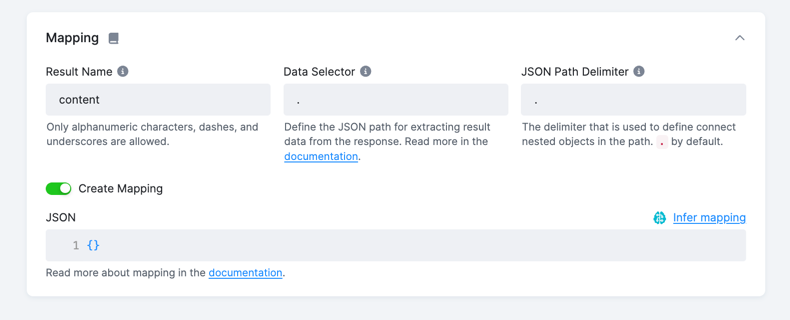
Section titled “User Interface”In the UI, the mapping can be created for each endpoint in the Endpoints.Mapping section by clicking Create Mapping toggle.
Mapping Detection
Section titled “Mapping Detection”You may opt to generate the mapping automatically by clicking the Infer Mapping button in the top right corner.
This operation will generate a mapping based on the enpoint’s sample response, which may help as a starting point for further manual adjustments.
In most cases, this method is sufficient and doesn’t require any additional edits.
Primary key
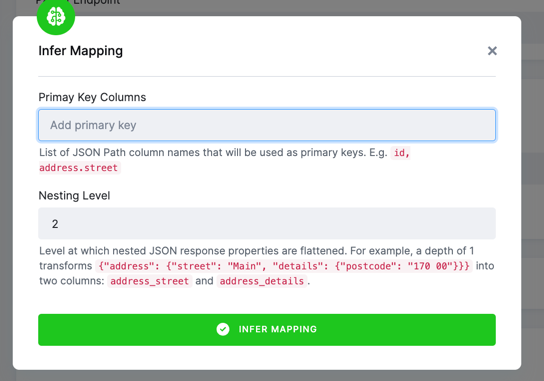
Section titled “Primary key”You can specify a . separated path of the elements in the response to create a primary key. NOTE that if you are mapping child jobs,
the parent keys will automatically be included.
Nesting level
Section titled “Nesting level”Currently, the automatic detection outputs only single table mapping. You can control the nesting level by specifying
the Nesting Level property. For example, a depth of 1 transforms {"address": {"street": "Main", "details": {"postcode": "170 00"}}} into two columns: address_street and address_details.
All elements that have ambiguous types or are beyond the specified depth are stored in a single column as JSON, e.g., with the force_type option.
Column Mapping
Section titled “Column Mapping”Column mapping represents a basic mapping type that allows you to select extracted columns, rename them, and optionally set a primary key on them. The mapping configuration requires:
type(optional, string) --- Can be omitted or must becolumn.mapping(required, object) --- Object with two properties:destination(required, string) --- Name of the column in the output tableprimaryKey(optional, boolean) --- Iftrue, then a primary key will be set on the column. The default value isfalse.
forceType(optional, boolean) --- If set totrue, the property will not be processed and will be stored as an encoded JSON (see an example).
User Mapping
Section titled “User Mapping”User mapping has the same configuration as the column mapping. The only difference is that it applies to virtual properties. This is useful mainly for working with auto-generated properties/columns in child jobs (see an example).
Table Mapping
Section titled “Table Mapping”Table mapping allows you to create a new table from a particular property of the response object. Table mapping is, by default, used for arrays. The mapping configuration requires:
type(required, string) --- Must be set totable.destination(required, string) --- Name of the output table.tableMapping(required, object) --- Object with another mapping configuration (required unlessparentKey.disableis set totrue--- see below).parentKey(optional, object) --- Configuration of the parent-child relationship between tables:destination(optional, string) --- Name of the column which links to the parent table. The default value is the name of the parent table with the suffix_pkey. See an example.primaryKey(optional, boolean) --- Set totrueto mark the link column as a primary key for the child table too. The default value isfalse. See an example.disable(optional, boolean) --- Completely disables the parent-child relationship, disables configuredtableMapping. See an example.
The following configuration takes the contacts property from the response and makes a new table
(user-contact) from it; the contacts.email is mapped to the email column and the property
contacts.phone is mapped to the column tel. See more in the examples.
"contacts": { "type": "table", "destination": "user-contact", "tableMapping": { "email": { "type": "column", "mapping": { "destination": "email" } }, "phone": { "type": "column", "mapping": { "destination": "tel" } } }}Examples
Section titled “Examples”The following examples demonstrate how to map JSON responses to CSV files.
Automatic Mapping
Section titled “Automatic Mapping”Without any configuration, the following JSON response:
[ { "id": 123, "name": "John Doe", "address": { "street": "Blossom Avenue", "country": "United Kingdom" }, "interests": [ "girls", "cars", "flowers" ] }, { "id": 234, "name": "Jane Doe", "address": { "street": "Whiteheaven Mansions", "city": "London", "country": "United Kingdom" }, "interests": [ "boys", "cars", "flowers" ] }]is converted to the following CSV files (and subsequently Storage tables):
users:
| id | name | address_street | address_country | address_city | interests |
|---|---|---|---|---|---|
| 123 | John Doe | Blossom Avenue | United Kingdom | users_dab021748b7f93c10476ebe151de4459 | |
| 234 | Jane Doe | Whiteheaven Mansions | United Kingdom | London | users_aeb1d126471eef24c0769437f4e7adaa |
users_interests:
| data | JSON_parentId |
|---|---|
| girls | users_dab021748b7f93c10476ebe151de4459 |
| cars | users_dab021748b7f93c10476ebe151de4459 |
| flowers | users_dab021748b7f93c10476ebe151de4459 |
| boys | users_aeb1d126471eef24c0769437f4e7adaa |
| cars | users_aeb1d126471eef24c0769437f4e7adaa |
| flowers | users_aeb1d126471eef24c0769437f4e7adaa |
The nested properties address.street, address.county and address_city were automatically
flattened into columns named as a concatenation of the parent and child property names. The
array property interests was turned into a separate table and linked using
JSON_parentId column and auto-generated keys.
See example [EX063].
Basic Manual Mapping
Section titled “Basic Manual Mapping”Maybe you are not interested in the user interests and want to simplify the user table
to three columns: country, name and id. The following mapping configuration does the trick:
{ "parameters": { "api": { "baseUrl": "http://example.com/" }, "config": { "debug": true, "outputBucket": "mock-server", "jobs": [ { "endpoint": "users", "dataType": "users" } ], "mappings": { "users": { "address.country": { "type": "column", "mapping": { "destination": "country" } }, "name": { "type": "column", "mapping": { "destination": "name" } }, "id": { "mapping": { "destination": "id", "primaryKey": true } } } } } }}The mappings settings has the key users which is the value of the job.dataType property. The keys in
the users objects are the names of the properties in the JSON response. The values are the mapping configurations for
each property. The mapping is always exhaustive; only the mentioned properties get processed, while the others are
completely ignored. The above configuration also sets the primary key on the id column.
All three mapped properties are mapped to columns (the id property relies on the default value for type).
Notice that in the nested properties, you need to enter the name/path in the JSON response (address.country).
You cannot use the auto-generated name produced without any mapping (address_country), because the automatic
processing is turned off by the mapping.
Take great care to use the correct keys in the mapping! If you misspell the first-level key, the entire configuration will be ignored (it will refer to a non-existent data type). If you misspell the second-level key, you will get an empty column in the result (referring to a non-existent property of the response). With the correct settings, the following table will be produced:
| country | name | id |
|---|---|---|
| United Kingdom | John Doe | 123 |
| United Kingdom | Jane Doe | 234 |
See example [EX064].
Mapping Child Jobs
Section titled “Mapping Child Jobs”Let’s say that you have an API endpoint /users which returns a response similar to:
[ { "id": 123, "name": "John Doe" }, { "id": 234, "name": "Jane Doe" }]More details about the user can be retrieved through another endpoint --- /user/{id}, where {id} is
the user ID:
{ "id": 123, "name": "John Doe", "address": { "city": "London", "country": "UK", "street": "Whitehaven Mansions" }, "interests": [ "girls", "cars", "flowers" ]}To handle this situation in Generic Extractor, use a child job:
"jobs": [ { "endpoint": "users", "dataType": "users", "children": [ { "endpoint": "user/{user-id}", "dataType": "user-detail", "dataField": ".", "placeholders": { "user-id": "id" } } ] }]The produced user-detail table will look like this:
| id | name | address_city | address_country | address_street | interests | parent_id |
|---|---|---|---|---|---|---|
| 123 | John Doe | London | UK | Whitehaven Mansions | user-detail_3484bd6e10690a3a2e77079f69ceaa42 | 123 |
| 234 | Jane Doe | St Mary Mead | UK | High Street | user-detail_a7655e39a0399dc842b44365778cd295 | 234 |
Note that the name of the column parent_id depends on the placeholder configuration
and is not always parent_id (see example).
Now you can use the following mapping to shape the table:
"mapping": { "user-detail": { "address.country": { "type": "column", "mapping": { "destination": "country" } }, "parent_id": { "type": "user", "mapping": { "destination": "user_id" } } }}and get the following user-detail table:
| country | user_id |
|---|---|
| UK | 123 |
| UK | 234 |
The important part of the mapping configuration is that you must use "type": "user"
for the mapping type of the parent_id (user_id) column. This is because the
column parent_id does not really exist in the response as it is generated dynamically for the child job.
See example [EX065].
Mapping without Processing
Section titled “Mapping without Processing”The forceType configuration property allows you to skip a part of the API response from processing.
With the following API response:
[ { "id": 123, "name": "John Doe", "address": { "street": "Blossom Avenue", "country": "United Kingdom" }, "interests": [ "girls", "cars", "flowers" ] }, { "id": 234, "name": "Jane Doe", "address": { "street": "Whiteheaven Mansions", "city": "London", "country": "United Kingdom" }, "interests": [ "boys", "cars", "flowers" ] }]and the following mapping configuration:
"mappings": { "users": { "name": { "mapping": { "destination": "name" } }, "id": { "type": "column", "mapping": { "destination": "id", "primaryKey": true } }, "interests": { "type": "column", "mapping": { "destination": "interests" }, "forceType": true } }}the result table users contains the interests field unprocessed and left as JSON fragments:
| name | id | interests |
|---|---|---|
| John Doe | 123 | [“girls”,“cars”,“flowers”] |
| Jane Doe | 234 | [“boys”,“cars”,“flowers”] |
The same result can be achieved by using the responseFilter job property:
{ "parameters": { "api": { "baseUrl": "http://example.com/" }, "config": { "jobs": [ { "endpoint": "users", "dataType": "users", "responseFilter": "interests" } ] } }}See example [EX073].
Table Mapping Examples
Section titled “Table Mapping Examples”Basic table mapping
Section titled “Basic table mapping”Because all output columns must be listed in a mapping, using only column mapping settings skips
the interests property of the response:
[ { "id": 123, "name": "John Doe", "address": { "street": "Blossom Avenue", "country": "United Kingdom" }, "interests": [ "girls", "cars", "flowers" ] }, { "id": 234, "name": "Jane Doe", "address": { "street": "Whiteheaven Mansions", "city": "London", "country": "United Kingdom" }, "interests": [ "boys", "cars", "flowers" ] }]The interests property cannot be saved as a column therefore, a mapping of the table type must be used:
"mappings": { "users": { "name": { "type": "column", "mapping": { "destination": "name" } }, "id": { "type": "column", "mapping": { "destination": "id" } }, "interests": { "type": "table", "destination": "user-interests", "tableMapping": { ".": { "type": "column", "mapping": { "destination": "interest" } } } } }}The table mapping follows the same structure as normal mapping. Each item is another mapping
definition identified by the property name in the JSON file. Because the interests property
itself is an array, its value has no name, and therefore, the key is only a dot ".". The mapping
value is a standard column mapping.
The above configuration produces the same result as automatic column mapping.
See example [EX066].
Nested properties
Section titled “Nested properties”Let’s say that you have an API that returns a response like this (it will be used in the following two examples as well):
[ { "id": 123, "name": "John Doe", "contacts": { "email": "john.doe@example.com", "phone": "987345765", "addresses": [ { "street": "Blossom Avenue", "country": "United Kingdom" }, { "street": "Whiteheaven Mansions", "city": "London", "country": "United Kingdom" } ] } }, { "id": 234, "name": "Jane Doe", "contacts": { "email": "jane.doe@example.com", "skype": "jane.doe", "addresses": [ { "street": "Whiteheaven Mansions", "city": "London", "country": "United Kingdom" } ] } }]With the automatic mapping (without any mappings configuration), the following tables will be extracted:
users:
|id|name|contacts_email|contacts_phone|contacts_addresses|contacts_skype| |---|---|---|---|---|---|---| |123|John Doe|john.doe@example.com|987345765|users.contacts_912c86dec7acdb9d8a17c97eb464aec6|| |234|Jane Doe|jane.doe@example.com||users.contacts_4cf9e859113127acb138872cc630e75f|jane.doe|
users.contacts:
| street | country | city | JSON_parentId |
|---|---|---|---|
| Blossom Avenue | United Kingdom | users.contacts_912c86dec7acdb9d8a17c97eb464aec6 | |
| Whiteheaven Mansions | United Kingdom | London | users.contacts_912c86dec7acdb9d8a17c97eb464aec6 |
| Whiteheaven Mansions | United Kingdom | London | users.contacts_4cf9e859113127acb138872cc630e75f |
This might not be exactly what you want. Perhaps you would like the contacts to be separate from the users and addresses. This can be done using the following mapping configuration:
"mappings": { "users": { "id": { "type": "column", "mapping": { "destination": "id" } }, "name": { "type": "column", "mapping": { "destination": "name" } }, "contacts": { "type": "table", "destination": "user-contact", "tableMapping": { "email": { "type": "column", "mapping": { "destination": "email" } }, "phone": { "type": "column", "mapping": { "destination": "tel" } }, "addresses": { "type": "table", "destination": "user-address", "tableMapping": { "street": { "type": "column", "mapping": { "destination": "street" } }, "country": { "type": "column", "mapping": { "destination": "country" } } } } } } }}The above configuration defines that the contacts field will be mapped into a separate table
with the columns email and tel (value of mapping.destination). The address field will be
mapped into yet another separate table with the columns street and country.
With the above configuration, the following tables will be created:
users:
| id | name | user-contact |
|---|---|---|
| 123 | John Doe | b5d72095c441b3a3d6f23ad8142c3f8b |
| 234 | Jane Doe | 5f7f2ab65a680f1a9387a8fafe6b9050 |
user-contact:
| tel | user-address | users_pk | |
|---|---|---|---|
| john.doe@example.com | 987345765 | 1c439a9a39548290f7b7a4513a9224e7 | b5d72095c441b3a3d6f23ad8142c3f8b |
| jane.doe@example.com | 605e865710f95dba665f6d0e8bc19f1a | 5f7f2ab65a680f1a9387a8fafe6b9050 |
user-address:
| street | country | user-contact_pk |
|---|---|---|
| Blossom Avenue | United Kingdom | 1c439a9a39548290f7b7a4513a9224e7 |
| Whiteheaven Mansions | United Kingdom | 1c439a9a39548290f7b7a4513a9224e7 |
| Whiteheaven Mansions | United Kingdom | 605e865710f95dba665f6d0e8bc19f1a |
See example [EX067].
Array items
Section titled “Array items”The following examples deal with arrays of objects. If you need to deal with array of scalar values, see the corresponding example.
Consider the same API response as above:
Click to expand the response.
[ { "id": 123, "name": "John Doe", "contacts": { "email": "john.doe@example.com", "phone": "987345765", "addresses": [ { "street": "Blossom Avenue", "country": "United Kingdom" }, { "street": "Whiteheaven Mansions", "city": "London", "country": "United Kingdom" } ] } }, { "id": 234, "name": "Jane Doe", "contacts": { "email": "jane.doe@example.com", "skype": "jane.doe", "addresses": [ { "street": "Whiteheaven Mansions", "city": "London", "country": "United Kingdom" } ] } }]Let's say that you know that the `addresses` array contains only two items at most, and therefore, you want to mark them as the primary and secondary addresses:
"mappings": { "users": { "id": { "type": "column", "mapping": { "destination": "id" } }, "name": { "type": "column", "mapping": { "destination": "name" } }, "contacts": { "type": "table", "destination": "user-contact", "tableMapping": { "email": { "type": "column", "mapping": { "destination": "email" } }, "phone": { "type": "column", "mapping": { "destination": "tel" } }, "addresses.0": { "type": "table", "destination": "primary-address", "tableMapping": { "street": { "type": "column", "mapping": { "destination": "street" } }, "country": { "type": "column", "mapping": { "destination": "country" } } } }, "addresses.1": { "type": "table", "destination": "secondary-address", "tableMapping": { "street": { "type": "column", "mapping": { "destination": "street" } }, "country": { "type": "column", "mapping": { "destination": "country" } } } } } } }}The important part of the pretty long configuration is:
"addresses.0": { "type": "table", "destination": "primary-address", "tableMapping": { "street": { "type": "column", "mapping": { "destination": "street" } }, "country": { "type": "column", "mapping": { "destination": "country" } } }}This picks the first item (remember that array indexes are
zero-based) and places it in the
primary-address table. Analogously, the addresses.1 mapping picks the second item from the addresses
array and stores it in the secondary-address table.
See example [EX068].
Directly mapping array
Section titled “Directly mapping array”The following examples deal with arrays of objects; if you need to deal with array of scalar values, see the corresponding example.
Consider the same API response as above:
Click to expand the response.
[ { "id": 123, "name": "John Doe", "contacts": { "email": "john.doe@example.com", "phone": "987345765", "addresses": [ { "street": "Blossom Avenue", "country": "United Kingdom" }, { "street": "Whiteheaven Mansions", "city": "London", "country": "United Kingdom" } ] } }, { "id": 234, "name": "Jane Doe", "contacts": { "email": "jane.doe@example.com", "skype": "jane.doe", "addresses": [ { "street": "Whiteheaven Mansions", "city": "London", "country": "United Kingdom" } ] } }]If you map the table as in the previous example, you will receive a primary-address table:
| street | country | user-contact_pk |
|---|---|---|
| Blossom Avenue | United Kingdom | 1c439a9a39548290f7b7a4513a9224e7 |
| Whiteheaven Mansions | United Kingdom | 605e865710f95dba665f6d0e8bc19f1a |
Notice that the records link to the user-contact table. This may produce unnecessarily complicated
links between the tables because, from the response, it is obvious that each address is assigned to
a specific user. To avoid this, you can directly map a nested property:
"mappings": { "users": { "id": { "type": "column", "mapping": { "destination": "id" } }, "name": { "type": "column", "mapping": { "destination": "name" } }, "contacts": { "type": "table", "destination": "user-contact", "tableMapping": { "email": { "type": "column", "mapping": { "destination": "email" } }, "phone": { "type": "column", "mapping": { "destination": "tel" } } } }, "contacts.addresses.0": { "type": "table", "destination": "primary-address", "tableMapping": { "street": { "type": "column", "mapping": { "destination": "street" } }, "country": { "type": "column", "mapping": { "destination": "country" } } } } }}The mapping for the primary-address table is now not nested inside the mapping for the
contacts table. Therefore, it links directly to the users table. The content is the same because
the mapping still refers to the same property --- the first item of the addresses property of contacts
(contacts.addresses.0). The following table is produced:
| street | country | users_pk |
|---|---|---|
| Blossom Avenue | United Kingdom | b5d72095c441b3a3d6f23ad8142c3f8b |
| Whiteheaven Mansions | United Kingdom | 5f7f2ab65a680f1a9387a8fafe6b9050 |
The user table now contains an additional column --- primary-address:
| id | name | user-contact | primary-address |
|---|---|---|---|
| 123 | John Doe | b5d72095c441b3a3d6f23ad8142c3f8b | b5d72095c441b3a3d6f23ad8142c3f8b |
| 234 | Jane Doe | 5f7f2ab65a680f1a9387a8fafe6b9050 | 5f7f2ab65a680f1a9387a8fafe6b9050 |
See example [EX069].
Using primary keys
Section titled “Using primary keys”In the above example, you can see that the primary-address table contains
an auto-generated key to link back to users. This is unnecessary because you can safely link to
the user ID. To do this, you only need to specify the primary key for the table:
"mappings": { "users": { "id": { "type": "column", "mapping": { "destination": "id", "primaryKey": true } }, "name": { "type": "column", "mapping": { "destination": "name" } }, "contacts": { "type": "table", "destination": "user-contact", "parentKey": { "primaryKey": true, "destination": "userId" }, "tableMapping": { "email": { "type": "column", "mapping": { "destination": "email" } }, "phone": { "type": "column", "mapping": { "destination": "phone" } } } }, "contacts.addresses.0": { "type": "table", "destination": "primary-address", "tableMapping": { "street": { "type": "column", "mapping": { "destination": "street" } }, "country": { "type": "column", "mapping": { "destination": "country" } } } } }}The most important part in the above configuration is the "primaryKey": true setting for
the id column in the users table. Thanks to this, Generic Extractor is able to automatically link
all related records to this ID. In the user-contact and primary-address tables, the column
users_pk will be created, which will contain the user ID. The name is auto-generated as the
name of the parent table with the suffix _pk.
To override this auto-generated name, the following configuration is used in the user-contact
table, renaming the users_pk column to userId.
"parentKey": { "primaryKey": true, "destination": "userId"},It also marks the userId column in the user-contact table as the primary key. The following tables
are produced by the above mapping configuration:
users:
| id | name |
|---|---|
| 123 | John Doe |
| 234 | Jane Doe |
user-contact:
| phone | userId | |
|---|---|---|
| john.doe@example.com | 987345765 | 123 |
| jane.doe@example.com | 234 |
primary-address:
| street | country | users_pk |
|---|---|---|
| Blossom Avenue | United Kingdom | 123 |
| Whiteheaven Mansions | United Kingdom | 234 |
See example [EX070].
Multiple primary key columns
Section titled “Multiple primary key columns”Generic Extractor allows you to set only a single (primary) key for a table. This means that
if you set primaryKey on multiple columns, you will create a compound primary key. Let’s say
that you have an API with the following response:
[ { "firstName": "John", "lastName": "Doe", "interests": [ "girls", "cars", "flowers" ] }, { "firstName": "John", "lastName": "Doe", "interests": [ "boys", "cars", "flowers" ] }]Notice that the response does not contain a single unique property (id). You can create the following configuration:
"mappings": { "users": { "firstName": { "mapping": { "destination": "first_name", "primaryKey": true } }, "lastName": { "mapping": { "destination": "last_name", "primaryKey": true } }, "interests": { "type": "table", "destination": "interests", "tableMapping": { ".": { "type": "column", "mapping": { "destination": "interest" } } } } }}to extract the following tables:
users:
| first_name | last_name |
|---|---|
| John | Doe |
| Jane | Doe |
interests:
| interest | users_pk |
|---|---|
| girls | John,Doe |
| cars | John,Doe |
| flowers | John,Doe |
| boys | Jane,Doe |
| cars | Jane,Doe |
| flowers | Jane,Doe |
See example [EX071].
Multiple primary keys from nested columns
Section titled “Multiple primary keys from nested columns”The above example shows how to set a compound primary key. It is also possible to create a compound key using a parent column. Let’s say that you have an API with the following response:
[ { "id": 123, "name": "John Doe", "addresses": [ { "index": 1, "street": "Blossom Avenue", "country": "United Kingdom" }, { "index": 2, "street": "Whiteheaven Mansions", "city": "London", "country": "United Kingdom" } ] }, { "id": 234, "name": "Jane Doe", "addresses": [ { "index": 1, "street": "Whiteheaven Mansions", "city": "London", "country": "United Kingdom" } ] }]Notice that the addresses response does not contain a single unique property, but there is an index
property which is unique within a specific user. The primary key for an address would, therefore, be the
combination of id and index.
Create the following configuration:
"mappings": { "users": { "id": { "mapping": { "destination": "id", "primaryKey": true } }, "name": { "mapping": { "destination": "name" } }, "addresses": { "type": "table", "parentKey": { "destination": "userId", "primaryKey": true }, "destination": "user-address", "tableMapping": { "index": { "type": "column", "mapping": { "destination": "index", "primaryKey": true } }, "street": { "type": "column", "mapping": { "destination": "street" } }, "country": { "type": "column", "mapping": { "destination": "country" } } } } }}to extract the following tables:
users:
| id | name |
|---|---|
| 123 | John Doe |
| 234 | Jane Doe |
user-address:
|index|street|country|userId| |1|Blossom Avenue|United Kingdom|123| |2|Whiteheaven Mansions|United Kingdom|123| |1|Whiteheaven Mansions|United Kingdom|234|
When imported to Storage, the primary key for the user-address table will be set to
the combination of index and userId. The configuration has three important parts.
The first part:
"id": { "mapping": { "destination": "id", "primaryKey": true }}sets the id property from a user as the primary key for the resulting table.
The second part:
"parentKey": { "destination": "userId", "primaryKey": true}adds the primary key from users (i.e., the id property) to the child table user-address as a userId column.
It also sets it as the primary key for the user-address table.
The third part:
"index": { "type": "column", "mapping": { "destination": "index", "primaryKey": true }}adds the index column from the user-address table to the list of the primary key columns in that table.
See example [EX115].
Disabled parent key
Section titled “Disabled parent key”It is also possible to entirely disable the relationships between parts of the response objects. Consider, for example, this API response:
[ { "id": 123, "name": "John Doe", "children": [ { "id": 1234, "name": "Jenny Doe", "favoriteColors": "blue,pink" }, { "id": 1235, "name": "Jimmy Doe", "favoriteColors": "red,green,blue" } ] }, { "id": 234, "name": "Jane Doe", "children": [ { "id": 2345, "name": "Janet Doe", "favoriteColors": "black" } ] }]You may extract (by default) the children as a separate entity related to their parents. Another
option is to extract the children as an entity equal to their parents. This can be done by
disabling the relationship:
"mappings": { "users": { "id": { "type": "column", "mapping": { "destination": "id" } }, "name": { "type": "column", "mapping": { "destination": "name" } }, "favoriteColors": { "type": "column", "mapping": { "destination": "colors" } }, "children": { "type": "table", "destination": "users", "parentKey": { "disable": true } } }}The important part is parentKey.disable set to true in the children mapping. Then, an already
existing mapping can be referenced --- "destination": "users" defines that the children are to be mapped using
the same configuration as their parents.
Notice that the children mapping contains no tableMapping configuration. This is because the mapping of
the users data type is used both for users and their children. Setting tableMapping for children would have
no effect. This also means that the favoriteColors column configuration must be defined in the users
mapping (even though it is not used by the users in the API response).
See example [EX072].
User data in mapping
Section titled “User data in mapping”There are situations when you need to add custom columns to the output data. For this purpose, the
userData functionality can be used.
Consider this API response:
[ { "id": 123, "name": "John Doe" }, { "id": 234, "name": "Jane Doe" }]Let’s say you want to add a country column to output data, but you want to use custom mapping. To
handle this situation, you have to define mapping also for the userData.
"userData": { "country": "UK"},"mappings": { "users": { "id": { "type": "column", "mapping": { "destination": "id" } }, "name": { "type": "column", "mapping": { "destination": "name" } }, "country": { "type": "user", "mapping": { "destination": "country" } } }}The produced user table will look like this:
| id | name | country |
|---|---|---|
| 123 | John Doe | UK |
| 234 | Jane Doe | UK |
See example [EX134].